Overview:
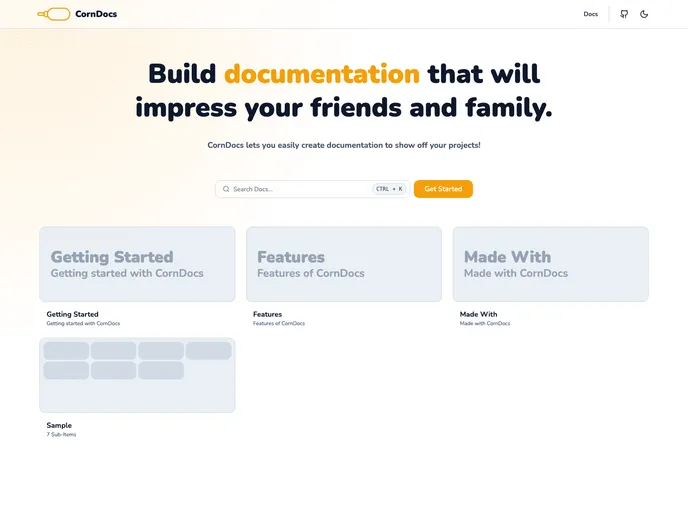
The article provides a guide on getting started with CornDocs, a documentation theme. It covers various topics such as adding documentation to a project, changing environment variables, setting sidebar order, changing images, adding custom content, setting up favicon, color customization, running the project locally, and deploying it to Vercel.
Features:
- Adding Docs to Your Project: Learn how to add documentation to your project using CornDocs.
- Changing the Environment Variables: Find out how to update the required fields in the corndocs.config.js file.
- Setting Sidebar Order: Learn how to set the order of the sidebar for both files and folders.
- Changing the Images: Discover how to replace the default images in the public/static folder with your own logo and picture.
- Adding Your Own Content: Create new files and nest them within folders to add your own custom content.
- Adding Images for Documentation Files and Folders: Add images to the public/images/ folder for documentation files and folders.
- Setting up Favicon: Generate favicon files and set them up for your project.
- Color Customization: Customize the accent color by modifying the primary color in the tailwind.config.js file.
Installation:
To install the CornDocs theme, follow these steps:
- Update the required fields in the corndocs.config.js file:
// corndocs.config.js
{
  title: "Your Project Title",
  description: "Your project description",
  // Other fields
}
- Set the sidebar order for files and folders:
// For a file:
---
title: My File Title
position: 1     // Set the sidebar order for the file
---

// For a folder (define.json):
{
  "position": 2    // Set the sidebar order for the folder
}
- Replace the default images in the public/static folder with your own logo and picture. The logo must be in SVG format.
- Add your custom content by creating a new file under the _posts directory, e.g., getting-started.mdx. You can nest files within folders.
- Specify metadata about your documentation in the top section of each file.
- Optionally, add images for documentation files and folders by placing them in the public/images/ folder.
- Optionally, set up a favicon for your project using a favicon generator tool.
- Customize the accent color by updating the primary color value in the tailwind.config.js file.
- Run the project locally to verify your changes by accessing http://localhost:3000/getting-started.
- When you’re ready, deploy your project to Vercel with a single click.
Summary:
The article provides a comprehensive guide on how to get started with the CornDocs documentation theme. It covers important topics such as adding documentation to a project, customizing the environment variables, setting sidebar order, changing images, adding custom content, setting up favicon, customizing colors, running the project locally, and deploying it to Vercel. By following the steps outlined in the article, users can easily set up and personalize their documentation using CornDocs.